
Scale Your Business with AI-centric,
Agile Cloud Printing
Connect your Business Central to any printer, anywhere.
Your Printing Process Doesn't Work the Way It Should.
Printing delays can slow down operations, disrupt shipments, and increase manual effort across teams. Businesses can lose up to 5% of productivity annually due to inefficient printing workflows and disconnected systems.
Users download PDFs just to print documents because direct printing isn't configured.
Warehouse teams wait on office staff to print labels or reports.
Documents may print to the wrong printer or fail to print altogether.
Printers are manually set up on each device, leading to errors and inconsistencies.
Managing printers across multiple locations becomes an ongoing IT challenge.
From Click to Controlled Print, Here's How VLC PrintNode Works
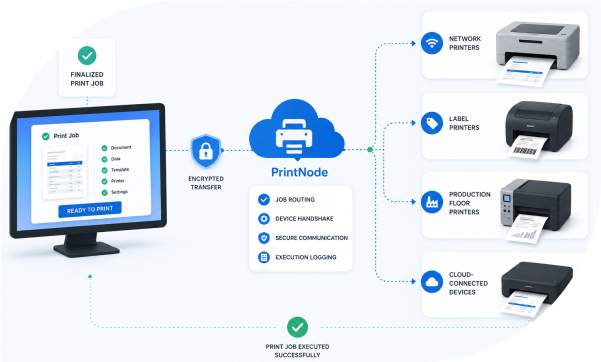
VLC PrintNode streamlines printing from request to execution, ensuring every document prints accurately and securely. Track, manage, and control print jobs across your network with ease and confidence.
Standard Print Action Triggered in Business Central
A user clicks "Print" inside Business Central—whether it's a Purchase Order, Sales Invoice, Production Order, or Label. The experience doesn't change, but behind the scenes, PrintNode intercepts the request for secure handling.
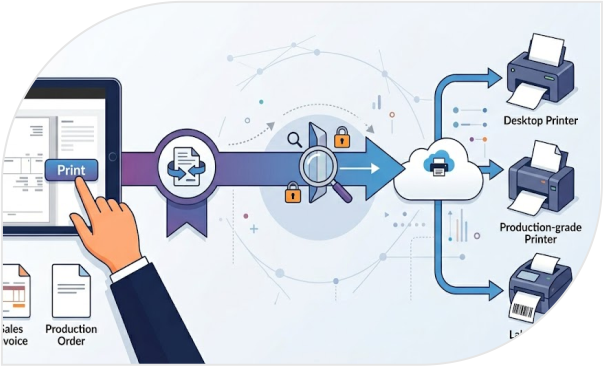
Business Central document page — Print button intercepted by PrintNode
Print Job Capture and Structuring
The intercepted print request is converted into a structured print job packet. It includes:
This ensures every print is treated as a controlled system event rather than a raw OS-level print action.
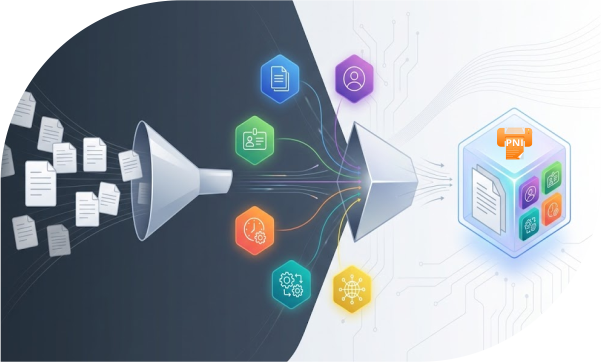
Print job structure — metadata fields populated in real time
Rule-Based Printer Routing
PrintNode evaluates routing rules to determine the correct output destination. Routing logic includes:
The system automatically assigns the correct printer without user selection.
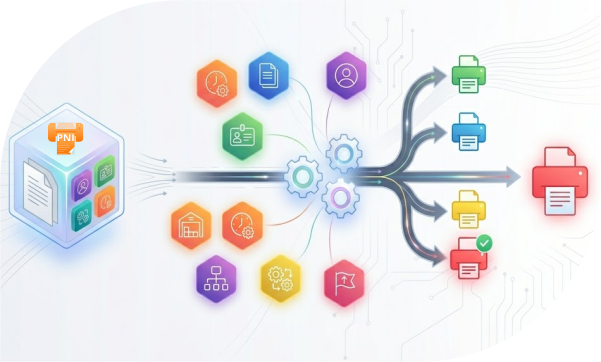
Routing engine — decision tree from PrintNode → Office, Warehouse, Production Floor
Template Resolution and Standardization
Before execution, PrintNode applies the correct document template. Examples:
This ensures all printed outputs follow standardized formats across the organization.
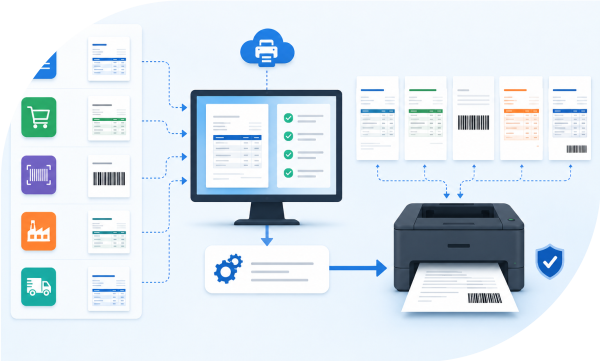
Template selection — Invoice, Label, Job Card dynamically resolved
Secure Print Execution to Device
The finalized print job is sent to the assigned printer. Supported outputs:
PrintNode manages device communication and ensures consistent execution across environments.
Factory floor printer — active job from Business Central in queue
Automatic Audit Logging and Trace Capture
Every print event is automatically logged inside Business Central. Captured data:
No manual logging is required.
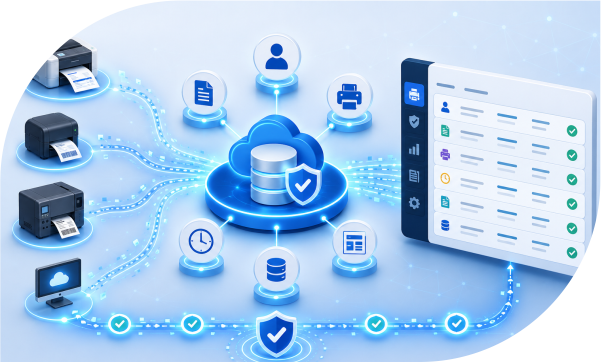
Audit log — print history with user, document, printer, time, and transaction ID
Reprint and Traceability Control
Each print job is assigned a unique transaction ID. This enables:
Reprints follow the same routing, template, and logging rules.
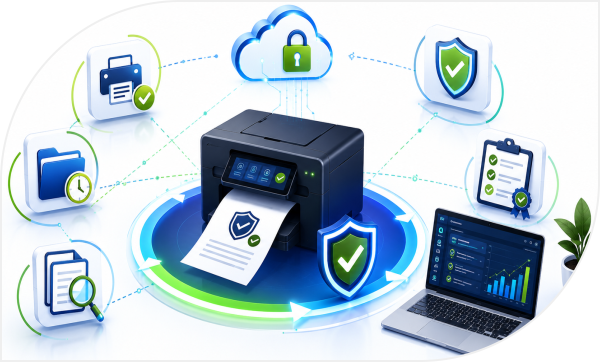
Reprint screen — historical jobs with transaction IDs and Reprint button
What It Means for You
Universal Printer Support
Connect to any local or network printer, from any printer model (HP, DYMO, Zebra, Epson, etc.). No more worrying about compatibility.
Cloud-Based Flexibility
Print documents, labels, barcodes, and more from anywhere, on any printer, with no need for on-premise hardware.
Seamless Report Printing
Print both standard and custom reports from Business Central with ease. Whether it's a PDF or raw format, VLC PrintNode integrates with both.
Quick Setup, Zero Coding
Get started without programming knowledge. Simply input your PrintNode Key-value, and you're ready to integrate.
Complete Print Job Tracking
Track every print job with a detailed history, giving you full control over your print operations and compliance.
Safe, Secure, and Private
PrintNode ensures all data is encrypted, and no unnecessary information is collected. Your print jobs are secure, with no third-party access.
Everything Your Printing Team Needs, In One Simple App
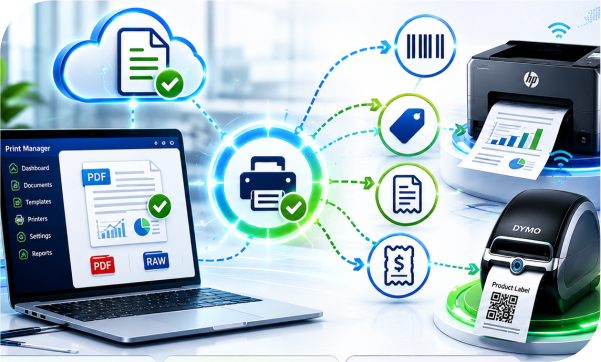
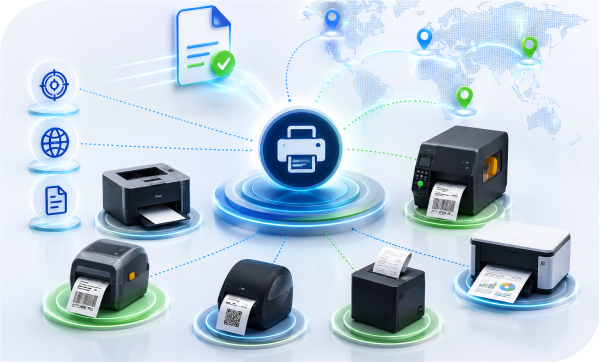
Universal Printing
- Print directly to any supported printer, including barcodes, labels, and receipts.
- Compatible with a wide range of printers from brands like HP, Zebra, DYMO, Epson, and more.
- Supports both PDF and RAW formats, including ZPL and EPL.
RAW Printing Support
- Enable high-speed printing for barcodes and labels via specialized printer languages.
- Send documents in native formats like ZPL, EPL, or other printer-specific commands via PrintNode API.
- Ensure precise, low-latency output for high-volume label and warehouse printing.
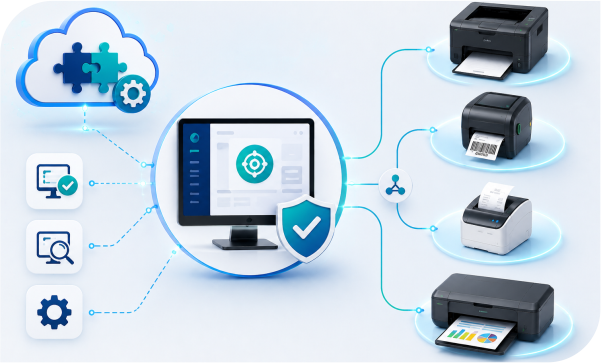
Easy Integration
- Integrate local and network printers directly into Microsoft Dynamics 365 Business Central without complex setup.
- Automatically detect installed printers on the system and connect them seamlessly.
- Configure printers quickly using simple connection parameters with no coding required.
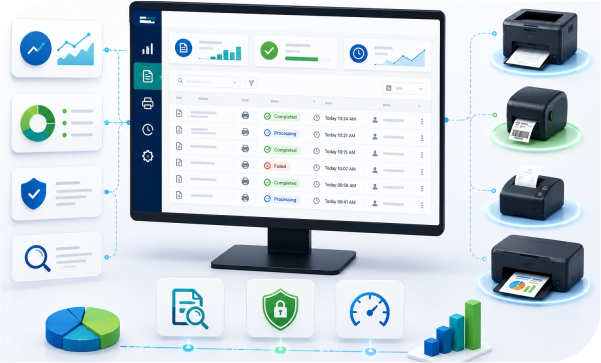
Track Print Jobs with Ease
- Monitor print job history, status, and execution details through the PrintNode portal.
- Maintain full visibility of all print activities for auditing and operational control.
- Access centralized logs for troubleshooting, compliance, and performance tracking.
Why VLC PrintNode Integration and Not Just Any Print Solution?
Native BC Integration
Built directly into Business Central—no third-party middleware.
Wide Printer Compatibility
HP, DYMO, Zebra, Epson, and many more supported.
Zero Coding Setup
Just input your PrintNode Key-value—no programming needed.
Remote & Cloud Printing
Send print jobs from anywhere, even when working off-site.
Complete Job Tracking
Real-time history, monitoring, and compliance records.
Safe & Secure
All data encrypted. No unnecessary information collected.
License Compatibility
Works with Essentials and Premium Business Central licenses.
Comparison Snapshot
| Feature | VLC PrintNode Integration | Other Print Solutions |
|---|---|---|
| Native Business Central Integration | Seamless | Requires 3rd-party |
| Printer Compatibility | Wide range | Limited |
| Remote Printing | Cloud-based | Limited/None |
| RAW Printing Support | ZPL & EPL | Not all |
| Print Job Tracking | Real-time | Manual/Absent |
| Easy Setup | Zero coding | Complex |
See VLC PrintNode Integration in Action
Watch how print jobs move seamlessly from Business Central to your printer—in under 90 seconds.
Want to try it with your own setup?
Book a Live DemoFull Capability Overview
Printer & Document Support
- Universal Printer Support
- PDF & RAW Printing
- Cloud-Based Remote Printing
- Wide Printer Compatibility
System Integration & Workflow
- Seamless BC Integration
- No-Coding Setup
- Print Job History Tracking
- Fast Printer Setup
Advanced Features
- Real-Time Print Monitoring
- Print Job Customization
- Secure, Encrypted Printing
- Automated Error Reporting
Want to Streamline Your Printing Operations?
Download Fact Sheet
Get the full feature list, technical specifications, and integration details.
Talk to Our Experts
Get personalized advice and discover how VLC PrintNode fits your business needs.
Contact UsFrequently Asked Questions
Yes. VLC PrintNode Integration is a native app for Business Central, requiring no additional software or configurations.
Most customers are live within minutes, and our team provides full setup support.
VLC PrintNode supports a wide variety of printers, including HP, DYMO, Zebra, Epson, and more.
Yes. VLC PrintNode enables cloud-based remote printing, so you can send print jobs from anywhere.
PrintNode ensures that all data is encrypted, and no unnecessary information is collected or shared with third parties.